The image pixelator works right in your browser. Select an area or cover the whole picture with clean mosaic blocks — free, full-size, and nothing is uploaded.
Your image
—/0 areas
or drop a file on the canvas PNG, JPG, WebP · up to 20 MB
Or try one:
Your images stay on your device. Everything happens in your browser, and downloads are re-encoded without the original file's metadata.
From photo to mosaic
How to pixelate an image in four short steps.
The image pixelator keeps the whole workflow on one screen. Load a picture, mark the area that needs cover, adjust the block size, and save the result at its original dimensions.
▣
Bring in your picture
Upload a PNG, JPEG, or WebP file, drag it onto the canvas, or paste from your clipboard. You can also start from one of the sample illustrations. Nothing leaves your device: the image pixelator processes every pixel locally in your browser.
Mark the area to pixelate
Drag a rectangle over the region you want to cover, or switch to the brush to paint an irregular shape such as a face or a signature. Several areas can be combined, and the whole-image button covers everything when you want the full picture pixelated at once.
Tune the block size
Move the slider and watch the mosaic update live. Small blocks keep the picture recognizable while hiding fine details like text. Larger blocks turn an area into obvious squares, which is what most people want for license plates and house numbers. Undo, redo, and per-area removal keep the process reversible while you work.
Save at the original size
Download a PNG that keeps transparency, or choose JPEG for a smaller file. The exported image matches your source dimensions exactly — there is no scaling, no cropping, and no watermark. Downloads are re-encoded by your browser, so the original file's metadata is not carried over.
Three everyday jobs
What pixelating part of an image looks like.
These original demo illustrations were mosaic-processed with the same block algorithm this page uses. They show what the image pixelator does on three typical jobs: an artistic whole-image effect, a face that needs cover, and a written note that should stay private.
The whole picture, as pixel art style
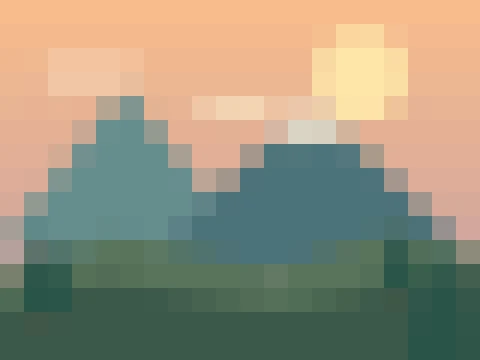
One click covers the entire canvas with large blocks. A landscape becomes a retro study in shapes and color — useful for thumbnails, posters, or a privacy-safe background where no detail should remain.
Whole image / 24 px blocks
A face, and nothing else
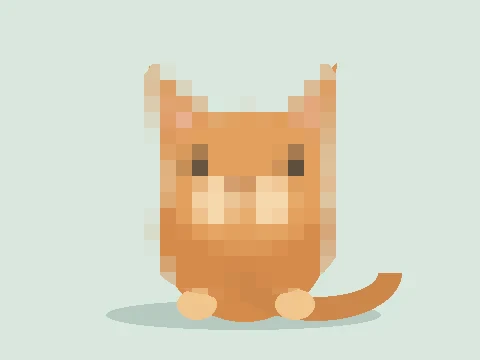
The brush follows the round shape of a head, so the background and clothing stay perfectly sharp. This is the classic pixelate-photo job: protect a person's identity without blurring the rest of the frame.
Brush area / 16 px blocks
Text you don't want read
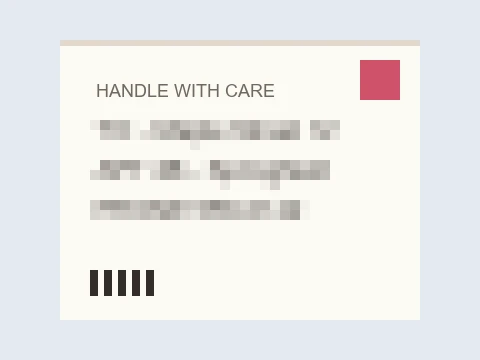
A rectangle over an address or a name makes the writing unreadable while the paper, stamps, and handwriting layout stay visible. Small blocks are enough for text — you only need to break the letter shapes, not the whole area.
Rectangle / 10 px blocks
Original demo illustrations, mosaic-processed with this page's block algorithm. These are examples, not user submissions.
A focused image mosaic tool, not a full editor.
Every control exists for one job: controlling how much detail stays visible. Nothing more competes for your attention.
Rectangle or brush — pick per job
Rectangles suit plates, screens, and documents because they cover cleanly with two drags. The brush suits faces, logos on curved surfaces, and any shape that a rectangle would over-cover. Both can be combined in the same picture, and each area can be removed separately from the list without disturbing the others.
Because dragging is not the only path, there is also a whole-image button. It gives you a complete mosaic in one action — handy on touch devices where precise selection is fiddly.
Block size is the whole art
The mosaic replaces each group of pixels with one average color. At 4–8 pixels per block, a face becomes unrecognizable only at close inspection; text needs around the height of a letter. At 32 pixels and beyond, the area reads as deliberate retro styling rather than redaction. Adjust the slider while looking at the image and choose the smallest size that does the job.
Blocks align to a fixed grid anchored at the top-left corner. That keeps overlapping areas consistent: redrawing over an already pixelated spot does not smear it further.
Honest privacy, not magic
A mosaic hides detail by discarding it — after export, the average color is all that remains inside each block. It is practical cover for casual sharing, but it is not encryption: for very small text, use blocks large enough that no letter stroke survives. We do not claim that a heavily pixelated area can never be partially reconstructed, so choose a size that makes reconstruction pointless.
One genuine gain: your download is re-encoded by the browser, so metadata such as GPS coordinates and camera details from the original file is not included in the saved image.
Works on your phone
The canvas responds to touch, buttons are sized for fingers, and the layout stacks vertically on small screens. Mark a rectangle over a screenshot's sensitive row, bump the block size, and save — the whole job takes less time than opening a desktop editor. As always on this site, there is no account and no upload step to wait for.
Common situations
When to pixelate a photo, and how much.
License plates and vehicles
A tight rectangle at 12–20 pixel blocks makes a plate unreadable while keeping the car crisp. Photographers who share shots from meets often prefer this over blurring, because the squares look like an intentional style choice. If the plate is angled, take a slightly larger rectangle rather than trying to trace it.
Faces of bystanders and children
Use the brush and trace the face with a margin of a few pixels — hair outlines move as people smile, so give yourself slack. Sixteen-pixel blocks are usually plenty when you pixelate photo backgrounds or skin without blurring clothing. For group photos, add one area per face; the list shows every area so you can confirm nothing was missed before saving.
Screenshots with private information
Addresses, phone numbers, invoice totals, and message previews all break apart easily because text has thin strokes. A rectangle over each row at 8–12 pixels is enough. Unlike cropping, pixelating keeps the surrounding layout, which helps readers follow support requests or bug reports without losing context.
Retro thumbnails and game-style art
Whole-image pixelation at 24–48 blocks turns a normal picture into a chunky mosaic that reads as 8-bit styling. Game communities, meme pages, and newsletter headers use this constantly. If you want to push the look further into true pixel art with limited colors and dithering, the Pixel Art Generator on the home page adds palette control on top of resolution.
Local, free, and done in seconds.
The image pixelator runs entirely in your browser. There is no upload queue, no account, and no watermark to remove. Your working image is temporary — save anything you want to keep before reloading or closing the page.
Know the limits before you start
Use a static PNG, JPEG, or WebP up to 20 MB and below 25 megapixels. Animated formats and SVG are not supported. The exported file always matches your source dimensions; the mosaic block grid anchors to the top-left corner of the image. A very large photo can take a moment per adjustment on older phones, so prefer a reasonably sized crop for smooth live previews.
This page deliberately does not convert images into palette-based pixel art, draw pixel-by-pixel, or animate frames — those are separate jobs. Use the home page converter for photo-to-pixel-art conversion, or the pixel art editor when you want to draw and correct sprites by hand.
Questions people ask before pixelating.
Short, practical answers about this image mosaic tool.
How do I pixelate part of an image?
Upload the picture, choose the rectangle or brush, and mark the area directly on the canvas — you can pixelate image details in one place while everything outside the selection stays untouched. Move the block-size slider until the detail is gone, then download. Several areas are supported, and each can be removed individually before exporting.
Is this image pixelator free?
Yes. Selection tools, whole-image pixelation, and full-size downloads are all free with no sign-up and no watermark. The limits exist to keep processing quick in a browser tab, not to upsell you.
Does pixelating hide information completely?
It discards the detail inside each block, which is strong enough for everyday sharing of plates, faces, and screenshots. It is not encryption, and we do not promise that reconstruction is impossible. Use blocks large enough that no recognizable strokes remain — especially for small text.
Will the exported image keep its size and quality?
The download matches your source dimensions exactly. PNG keeps transparency and is lossless; JPEG produces a smaller file and composites onto white. Unselected areas are untouched beyond the format's normal compression.
Are my photos uploaded anywhere?
No. The picture is read locally, processed in your browser, and saved by your browser. There is no server-side image processing on this site. See the privacy policy for what ordinary website hosting does collect.
Can I remove EXIF or GPS metadata?
Downloads are re-encoded from raw pixels, so metadata from the original file — including GPS coordinates and camera details — is not part of the exported image. This applies to both PNG and JPEG output.
What block size should I use?
Text becomes unreadable around 8–12 pixels; faces usually need 12–20; deliberate retro styling starts around 24. Watch the live preview and pick the smallest size that removes the detail you want gone. When in doubt, go one step larger.
How is this different from the home page pixel art converter?
The Pixel Art Generator reduces an entire image to a small grid with a limited color palette — a creative conversion. This page keeps your image at full size and only replaces selected areas with mosaic blocks — a privacy and effects job. Many people use both: convert first, then edit the result by hand.