A free online pixel art editor. Draw from a blank grid or fix an existing sprite — pencil, fill, eyedropper, undo, and crisp PNG exports, all in your browser.
it is resampled onto the current grid fix an existing sprite, or start a conversion result
Your drawing autosaves to this browser only — no account, no upload. Max canvas 128 × 128 cells.
Blank grid to finished sprite
How to make pixel art in four steps.
This online pixel art editor gives you a small grid, a few honest tools, and nothing in the way. Choose a canvas, draw, and export a crisp PNG when the picture feels done.
Start a small canvas
Pick 16, 24, 32, 48, or 64 cells per side. Small canvases are the secret of good pixel art: every square has to earn its place. Beginners get better results at 16×16 or 32×32 than on a huge grid, because the shapes stay readable while you learn.
Sketch the outline
Use the pencil to draw the silhouette first, one cell at a time. The eraser removes mistakes, and undo history means no stroke is permanent. Draw diagonals in single steps — a clean staircase of cells looks sharper than a jagged mixed line.
▦
Fill, shade, and refine
The fill tool floods an enclosed shape with one click, so flat colors take seconds. Pick a slightly darker tone for shadows and a lighter one for highlights, then touch up details with the pencil. The eyedropper grabs any color already on the canvas so shades stay consistent.
Save and reuse
Export a PNG at the grid's native size, or at 4× and 8× with sharp nearest-neighbor squares for avatars and mockups. Your work autosaves as a draft in this browser, so you can close the tab and continue tomorrow. The transparent background keeps your sprite ready for game engines and sticker sheets.
One sprite, three stages
How a pixel art drawing comes together.
This original demo character was drawn cell by cell in the same grid model this editor uses. The progression is the honest way pixel art happens: silhouette, flat color, then shading.
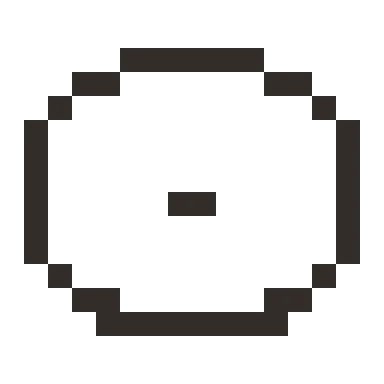
Stage 1 · The outline
A dark, closed contour on a 16×16 grid. At this stage the character is only a shape — and that is the point. If the silhouette reads clearly, everything added later will too.
16 × 16 / pencil
Stage 2 · Flat colors
One green inside the outline, white for the eyes. Flood fill does the heavy lifting; the pencil adds eye details cell by cell. Most beginner sprites already look good at this stage.
Fill + pencil
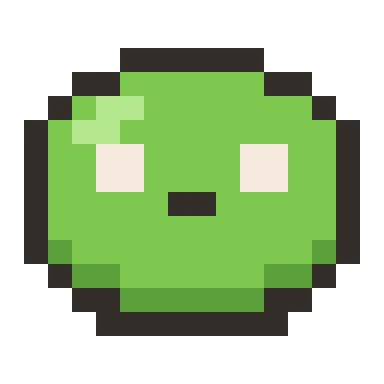
Stage 3 · Light and shade
A lighter green marks where light lands, a darker green grounds the bottom edge, and a shadow anchors the body. Three tones are enough — this finished character uses five colors in total, outline included.
5 colors total
Original demo sprite drawn for this page in the same grid model the editor uses. Use “Load example sprite” above to open the finished character and take it apart cell by cell.
A pixel art maker with the tools that matter.
Pencil, eraser, fill, eyedropper, undo — the classic set. Each one is instant, because everything runs locally.
Zoom and grid, without guesswork
The canvas renders each cell as a crisp square from 3 to 24 screen pixels, and the optional grid lines appear whenever they are big enough to be useful. What you see is the actual data: there is no smoothing between cells, and exports keep the same hard edges through nearest-neighbor scaling.
Transparent background by default
New canvases start fully transparent, shown as a checkerboard. The eraser returns cells to transparent, and exports keep the alpha channel, so a sprite drops straight into a game engine, a chat emote, or a presentation without cleanup. Want a solid backdrop? “Fill with color” floods every cell with your current color in one action.
Fix photos-turned-pixel-art
Convert a picture on the home page generator first, import the PNG here, and the image is resampled onto your grid as editable cells. This is the fix-up pass automatic tools cannot do: rebuild an eye, thin an outline, or remove a stray color. The pixel art editor is where conversion results become finished pieces.
Drafts that survive the tab
Every change autosaves to this browser's local storage — no account, no cloud, no upload. Close the laptop, come back, and the drawing is still on the grid. “New canvas” starts fresh at the same size whenever you want a clean sheet. Drafts live on this device only, which is exactly where your art should be.
Small habits, better sprites
Pixel art drawing tips that prevent messy work.
Limit your colors early
Pick three to five swatches before you start and stay inside them. The most common beginner mistake is too many similar shades, which turns a sprite into noise. Fewer colors force clearer shapes and make shading decisions obvious.
Draw at the size it will be seen
An avatar lives at 32 pixels; a game item might display at 16. Draw near the target size instead of scaling up hope. If a detail is unreadable at 24 pixels per cell on screen, it will not read in the game either — simplify the shape rather than adding more cells.
Outline with intention
A fully dark outline can feel heavy on small sprites. Many pixel artists reserve the darkest tone for the bottom and sides, and use a mid tone where the outline meets light. Try both on the example sprite: it is only one undo away.
Use it as a pixel art drawing tool anywhere
Because the editor runs in a browser tab, it works on a school laptop, a tablet, or a shared computer without installing anything. Drafts stay in that browser, and exported PNGs travel with you. For turning photos into a pixel-style reference before redrawing, the image converter and the image pixelator cover the rest of the workflow.
Made for drawing, not for tracking you.
The pixel art editor needs no account and sends no drawings anywhere. Your draft and your exports never leave this device. Reload-safe autosave means the tab can close; your sprite stays.
Know the limits before you start
Canvases are square from 8×8 to 128×128 cells, with one-click presets at 16 through 64. Imported images are resampled onto the current grid size, so import at the size you plan to edit. This editor is deliberately about static images: frame animation, tile maps, and layers are out of scope. PNG is the only export format — it is lossless and supports the transparency pixel art needs.
Drawings autosave to local storage on this device; clearing site data removes them, so export anything you care about before switching computers. The editor is a pixel art creator for originals, a fix-up station for converted images, and nothing that pretends to be a full art suite.
Questions about this online pixel art editor.
Everything you might wonder before your first sprite.
Is this pixel art editor free?
Yes — every tool on the page, PNG exports at all scales, and the local draft autosave are free. There is no account, no watermark, and no export limit.
What canvas size should beginners choose?
Start at 16×16 or 32×32. Small grids teach you to suggest detail with single cells, which is the core skill of pixel art. Move to 48 or 64 only when a piece genuinely needs more room.
Can I edit an existing image or sprite?
Yes. Use “Import an image to fix” and the picture is resampled onto the current grid as colored cells you can repaint freely. Pixel-aligned PNGs import almost perfectly; photographs become a mosaic base that you can clean up.
Does it work on phones and tablets?
The canvas responds to touch and the layout adapts to small screens, which turns a tablet into a pocket pixel art maker. Precise single-cell taps are easier with a stylus, and the zoom slider enlarges cells so fingers land where you aim.
Where is my drawing saved?
In this browser's local storage on this device, automatically. There is no cloud copy — which also means clearing site data or using another device starts fresh. Export a PNG whenever a drawing matters to you.
Are the exported PNGs transparent?
Yes. The checkerboard you see is the transparency preview; empty cells export as fully transparent pixels. If you fill the canvas with a color first, the export carries that solid background instead.
Can I animate sprites or add layers?
Not in this editor. It is a focused static pixel art drawing tool: one canvas, one frame, honest exports. Animation timelines and layer stacks need a dedicated suite — this page would rather do one job well.
How is this different from the image pixelator and the converter?
The home page converter turns photos into palette-limited pixel art automatically. The image pixelator adds mosaic blocks over chosen areas for privacy and effects. This editor is for drawing and correcting by hand — the three together cover a full pixel art workflow.